How to make a magazine style layout from a travel photo
Your photo stays exactly as shot. Beside it: a big title, a few lines of facts and a real map of the place.
What “magazine style” actually means
Take a magazine style photo layout apart and you usually find four things: a paper-colored margin around the photo, a title big enough to lead, a few small lines of text saying where and when, and a quiet, aligned grid. The layout is the easy part. The hard part is the facts: the name of that peak, how high you were, which way you were facing. Most people have forgotten by the time they get home.
The usual way, and what is annoying about it
The usual way is a magazine template in a design or photo editing app, filled in by hand. The template is generic and knows nothing about where your photo was taken. You look up the place name and elevation yourself, and if you want a map, you screenshot one, crop it and line it up. Fine for one photo, not for forty from the same trip.
What a GeoZine magazine page looks like
GeoZine reads the location recorded in your photo and fills in the facts and the map for you. With Magazine page on:
- The photo is kept as shot: the whole photo sits on the page with nothing drawn over it, and the photo area matches the original pixel for pixel.
- A paper-colored page: a portrait photo gets a column below it, a landscape photo gets a column to its right.
- A text column: a masthead, the place name as a large title, a subtitle, a small table of facts (coordinates, elevation, heading, date), and one line saying where you stand and what you see.
- A square map: the real contours, rivers and place names around the capture point, framed with a thin rule.
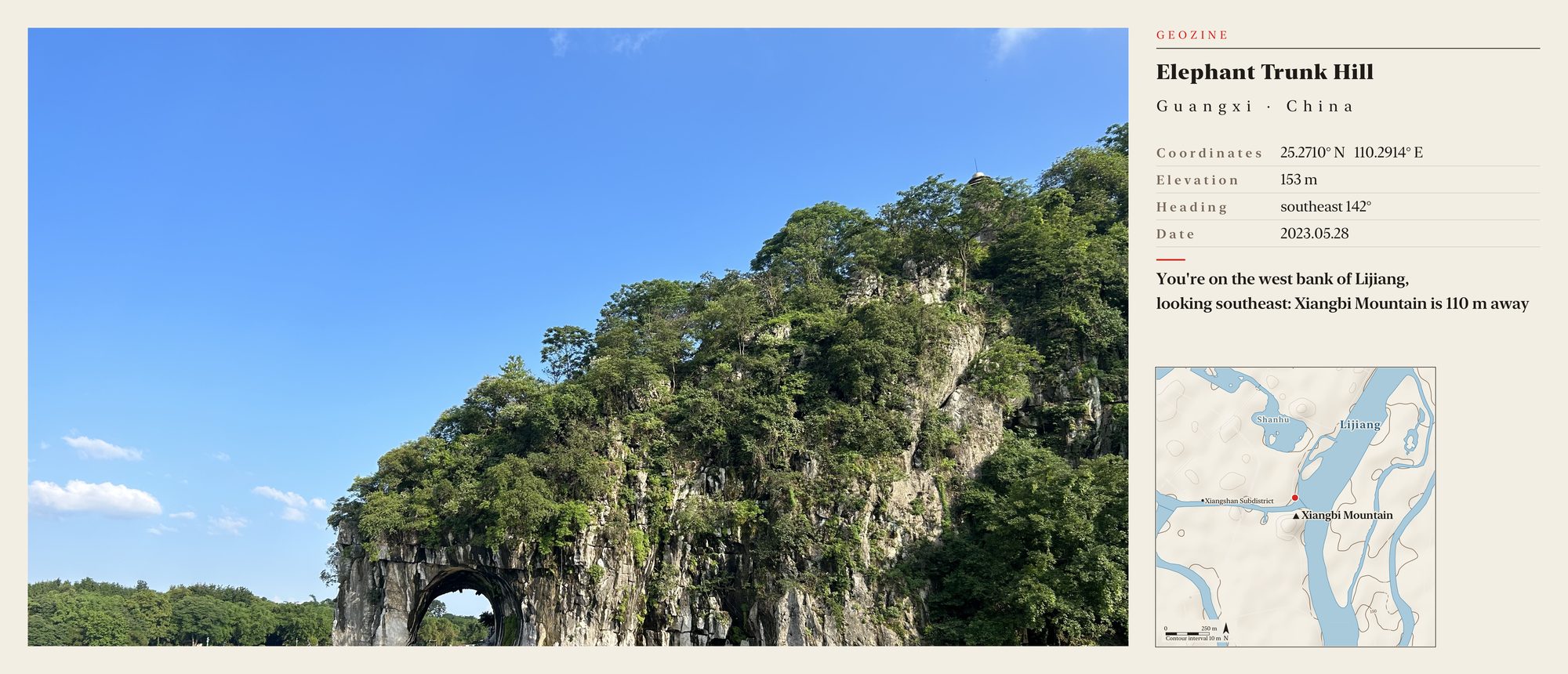
That page was exported from a real landscape travel photo; the map and the text were generated by the app from the capture point.
How to make one
- Pick a photo that has a location in GeoZine and let it render. If the photo has no location, you can choose a place by hand; see what to do when a photo has no location.
- At the bottom of the editor, tap Layout and switch the style from On photo to Magazine page. The Suggested row often includes a magazine page too, one tap away.
- Tap Text to change the title. It starts as the place name; write your own if you like.
- Tap Save. Saving creates a new photo in your library and leaves the original untouched.
Where the facts come from
- Coordinates: the capture location recorded in the photo, or the point you picked by hand.
- Elevation: the altitude recorded in the photo; if you picked a place by hand, the public elevation data at that point.
- Heading: only when the photo recorded which way the camera faced.
- Date: the capture date recorded in the photo.
Anything the photo did not record is left out; GeoZine does not make up data. So the same layout may show two rows for one photo and four for another.
What you can change, and what you cannot
- You can change the title and subtitle, the place (a new point renders again), and the ratio. A ratio crops the photo itself, and the page is added beside the cropped photo, so the whole image ends up wider or taller than the ratio you chose.
- You cannot change the arrangement: the magazine page has one fixed layout, the map and text column cannot be dragged, and the fonts and colors are fixed. For free placement, use On photo.
- The masthead reading GEOZINE is the app’s signature.
Which photos suit it
A wide landscape works best: the photo stays whole and the column sits to the right, like a spread in a travel magazine. Portrait photos work too, with the column below. A photo that shows no place, such as an indoor shot or a close-up portrait, leaves the map and the facts with little to say. For a feed post, the Spotlight layout with the map over the photo often stands out more; see which ratio and size to export.
Does it need a connection, and is the photo uploaded?
Every render downloads the public map and elevation data near the capture point, and GeoZine tells you right away if you are offline. Your photo is processed on your phone and is not uploaded, and there is no account; the request contains only tile numbers, no photo. See the Privacy Policy.
Get GeoZine on the App Store
iOS 17 or later · iPhone · Version 1.3.6 · Free to download with unlimited exports; Pro is a one-time purchase of $2.99 that removes the credit line on exported images

Feedback? geozine@gatheon.com