Which ratio and size to export your travel photo in
Five ratios, two sizes and a magazine page. Decide where it is going first, then choose.
What GeoZine offers
- Ratio: Original, 3:4, 4:5, 9:16 and 1:1. Original does not crop; the others cut the largest area of that ratio from the middle of the photo, and you can drag the crop.
- Size: the original size, or a 2560 px long edge.
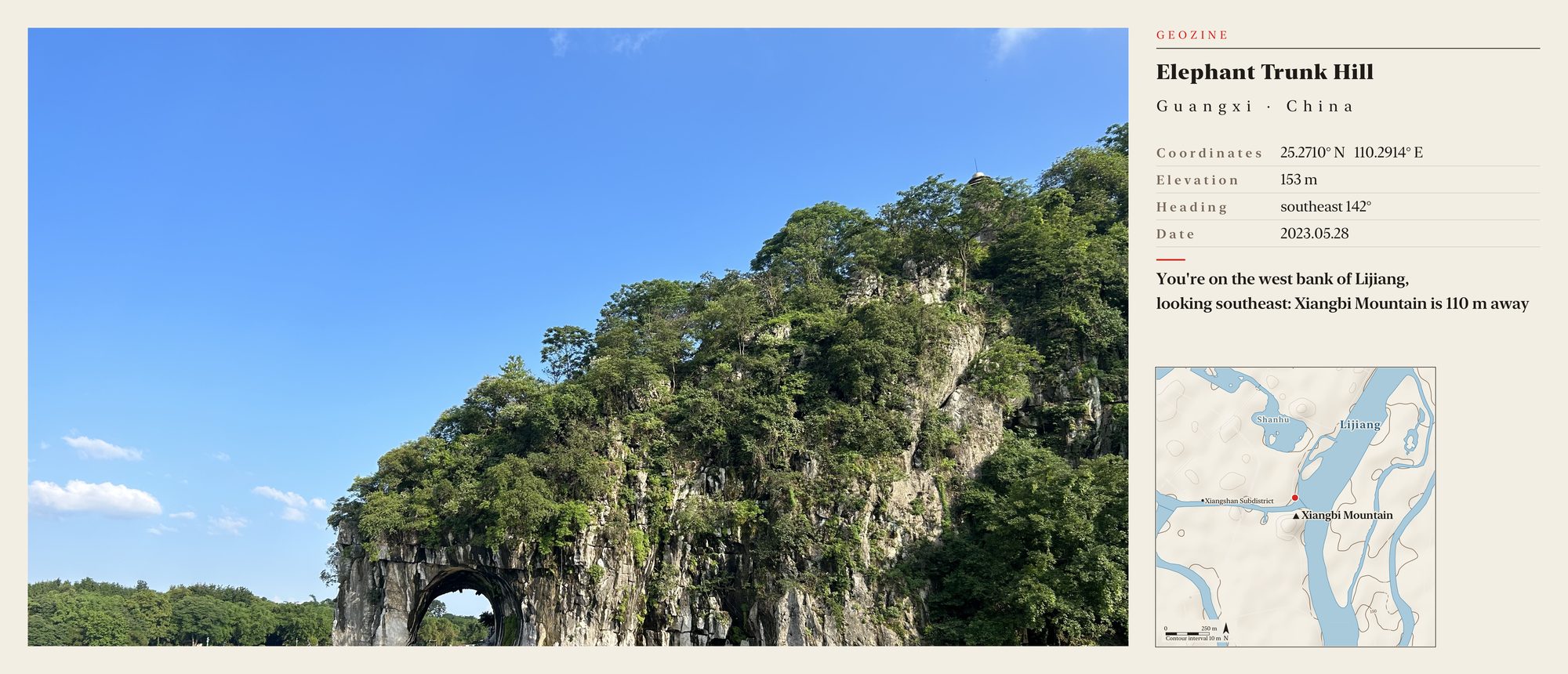
- Magazine page: the photo kept exactly as shot, with a paper-colored page beside it for the title, coordinates, elevation, heading, date, a short caption and the full map.
Choosing a ratio
These are common trade-offs. Feeds change how they crop, so check the platform’s current rules before you post.
- 4:5: a slightly tall portrait that fills more of a phone feed without cropping as hard as 9:16. A good default for a vertical landscape.
- 3:4: a taller portrait that takes up a lot of screen on a phone; try it when the scene is vertical.
- 9:16: full-screen vertical, for stories or wallpaper-style sharing. Keep the map card and title away from the top and bottom, where the app’s own buttons sit.
- 1:1: a square. It lines up neatly in a grid.
- Original: choose it when you do not want to lose anything, or for a wide landscape.
Choosing a size
The default is the original size: the best quality and the largest file. If you want a file that is less likely to be compressed again on upload, use the 2560 px long edge.
When to use the magazine page
A wide landscape suits the magazine page best: the photo is not covered by the map, and the information sits on the paper-colored page beside it. Use it when you want to keep the place, the elevation and a caption properly, for example in a trip album.
After you choose
Saving creates a new photo in your library and leaves the original untouched. You can still drag the title and the map block after rendering. For the whole process, see how to add a map to a travel photo.
Get GeoZine on the App Store
iOS 17 or later · iPhone · Version 1.3.6 · Free to download with unlimited exports; Pro is a one-time purchase of $2.99 that removes the credit line on exported images

Feedback? geozine@gatheon.com